Note: University Webex services will be retired on May 18, 2021. To prepare for this change, please back up your Webex recordings. UNC Charlotte will continue to support Zoom and Google Meet moving forward.
Here is a link from Lee to get started with Zoom Meetings:
IT Team | Make Zoom Meetings Quick and Easy (uncc.edu)
Webex is the university’s conference line solution if you need a phone line that can handle multiple callers. You may only need to utilize the phone option of webex but the meeting must be started on a computer for the phone line to become active
This is a quick start to setting up a meeting with Webex
- Login
- Click on Webex Meetings (small calendar looking icon)

- Click “Schedule” to schedule a meeting
- Set your Meeting Topic/Name, Date, Time, and Duration. Do not set a password unless you need to. (If using the phone option do not set a Password)
- Optional : Add attendees or alternate host of the meeting(you can send the call information manually via email to any attendees)
- use Non Alias emails for UNC Charlotte emails
- separate by semi colon or comma
- Click “Show Advanced Options”
- Open “Audio Connection Options”. Make sure it is set to Webex Audio(This is the step that will give you a phone number)
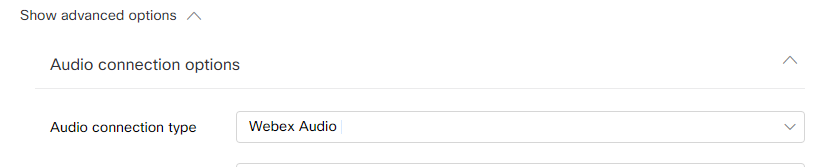
- You can change the Entry Exit tone if you like
- If someone else from UNCC is going to host the meeting click on Scheduling options below the Audio Connection Options. Check the box for Alternate Hosts
- Now you can save the meeting. You and any of the attendees will get a email/calendar invite with the phone and connection information.
- You can save the meeting as a template for future use.
- If needed you can now manually email attendees the meeting information but you should not share the Host ID.
- It is possible that people can get different links or phone numbers. Do not worry this is ok.
- When you are ready to start the meeting click the link in the email that you receive.
- We highly recommend using an actual phone and the call in option for audio. Audio quality is much better this way.
.